AVD setup
AVD setup
To setup new AVD on existing Hoostpool, for example
To add new Virtual Machine(VM) on UK-HOSTPOOL
-
Go to AVD-UK resource goup, look for UK-HOSTPOOL in Azure Portal.
-
Look for UK-HOSTPOOL, goto that hostpool.
-
Search for Session hosts at left side of the azure panel.
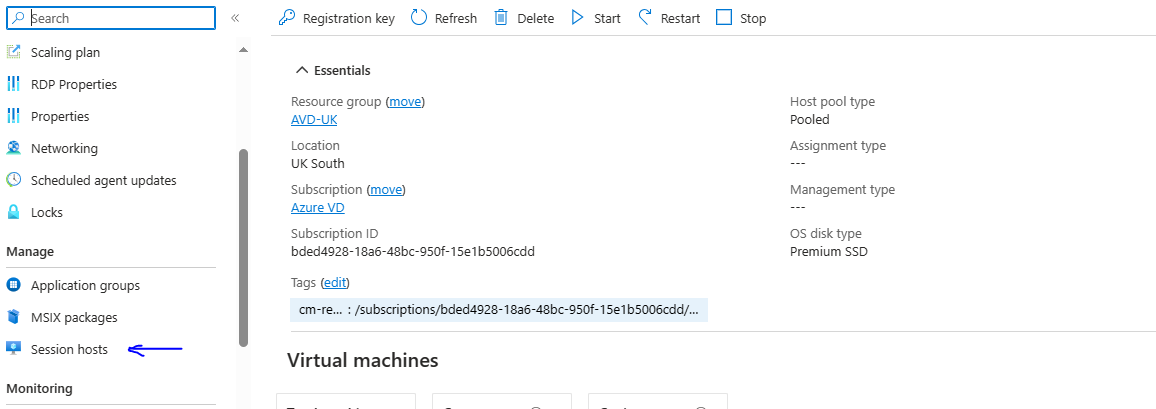
-
Add new Session Hosts by clicking Add.

!!! NOTE: if you encounter A registration key must be setup before adding new VM to host pool, than , go to Overview of the host pool, there you can see Registration key, Generate new key,configure expiration date. it will generate new key.
-
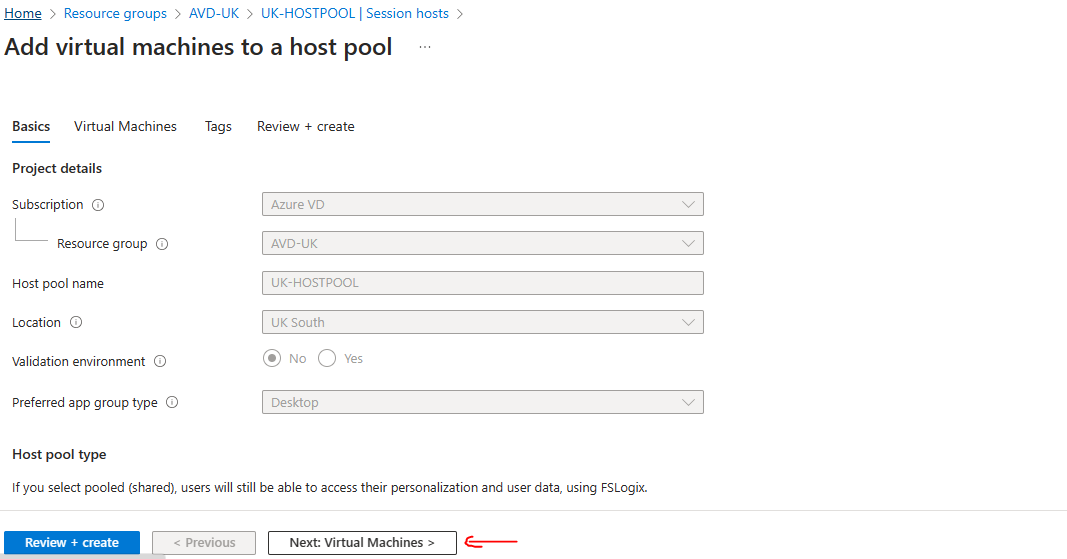
you will see Add virtual Machine to a host pool, select Next:Virtual Machine.
-
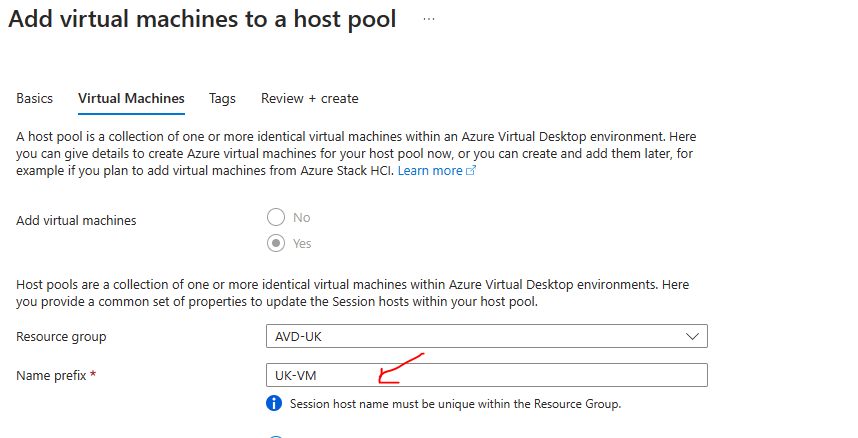
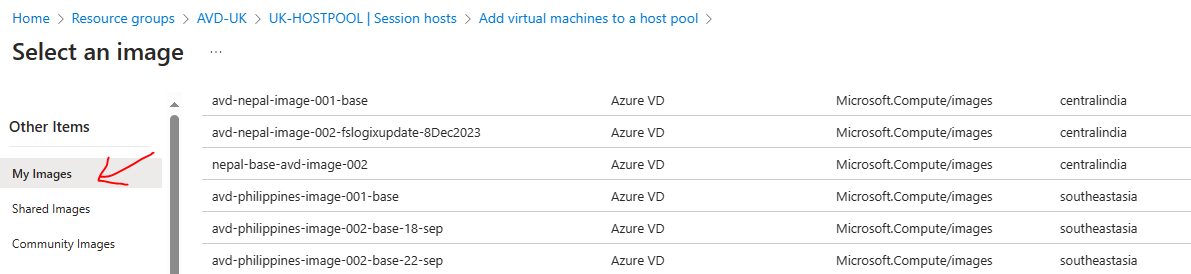
There you can choose which image you want to use for vm, choose latest base image, as it has been configured with fslogix registry, mysql cli and other application.
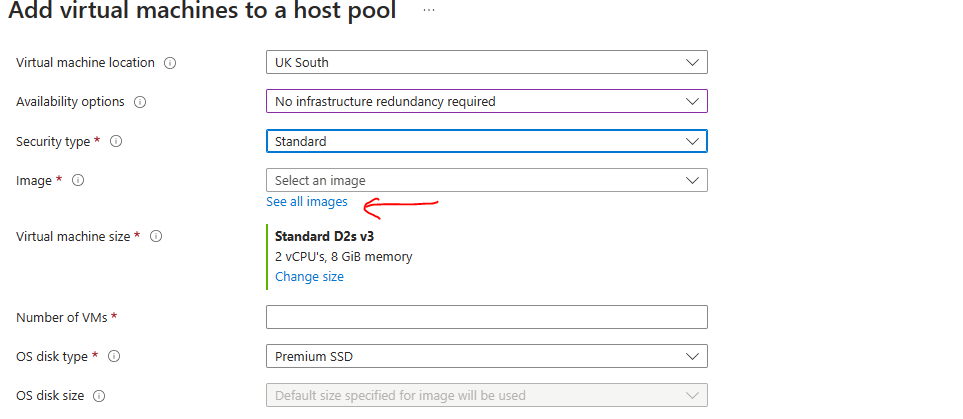 !!! NOTE: If you want to create new images and configure than look for azure documentation or any documentation for create AVD image and take snapshot. Remember to create images in AVD-mage resource group of respective region. since we have different storage for different regions and user profile are linked to the AVD.
 -
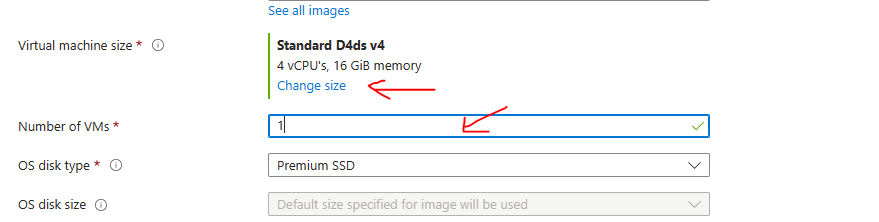
Choose Virtual MAchine Size according to your need.
-
Choose number of vm you want to deploy.
-
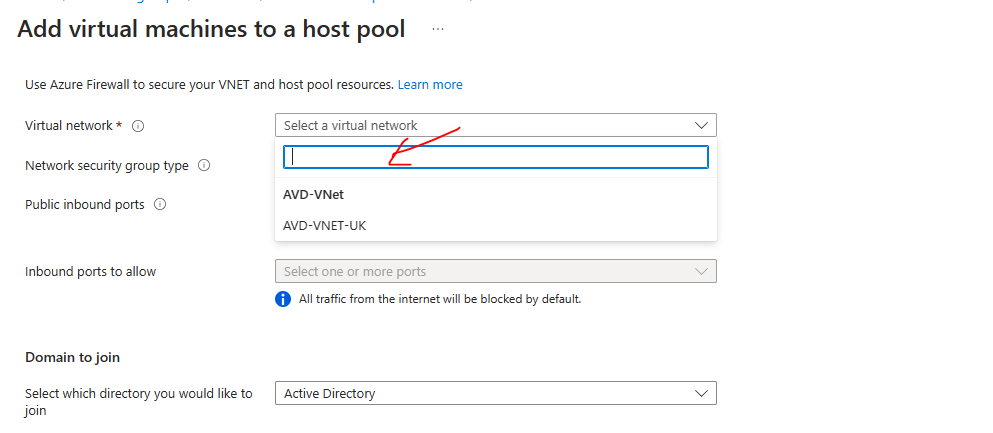
Choose Virtual Network where you want your AVD session.
-
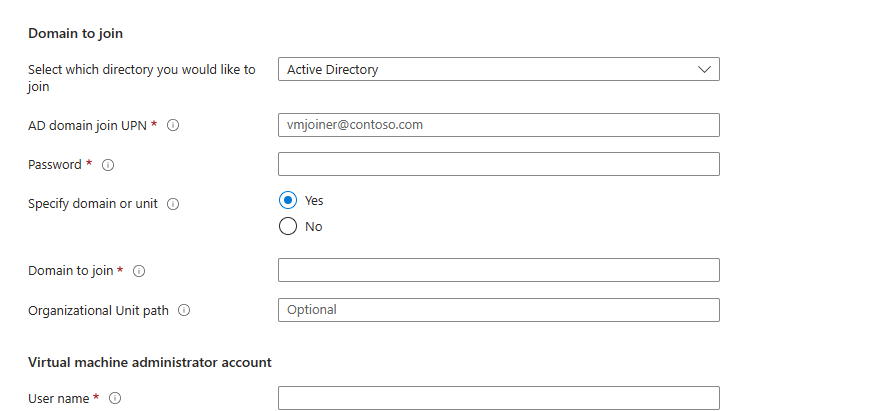
now Domain to join is crucial part, where we need to provide AD Domain join UPN : avd-admin@reg-1.com and password is stored at key vault.
-
Specify domain or unit : choose yes
-
Domain to join : reg-1.com
-
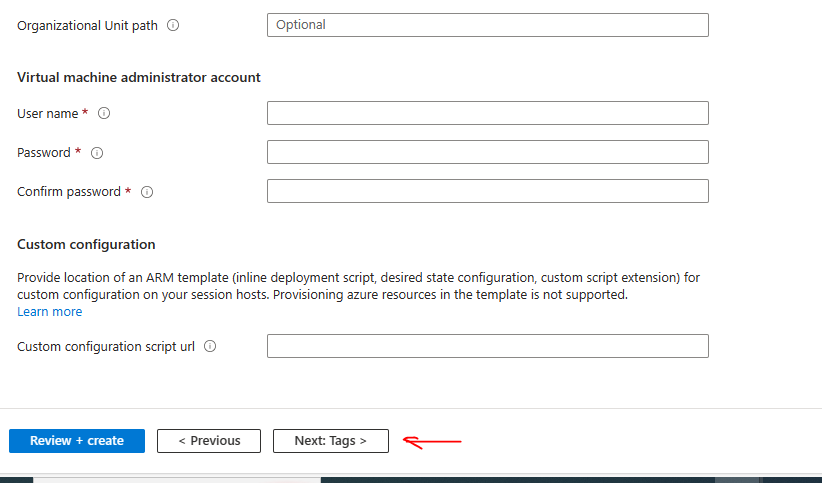
Organizational Unit path : for example, OU=UK,OU=AVD,DC=reg-1,DC=com (for UK) change OU according to region NP or PH for nepal and philippines.
-
Virtual machine administrator account : check for keyvault for username and password. (please configure same as other to make it consistent accross all othe VM)
-
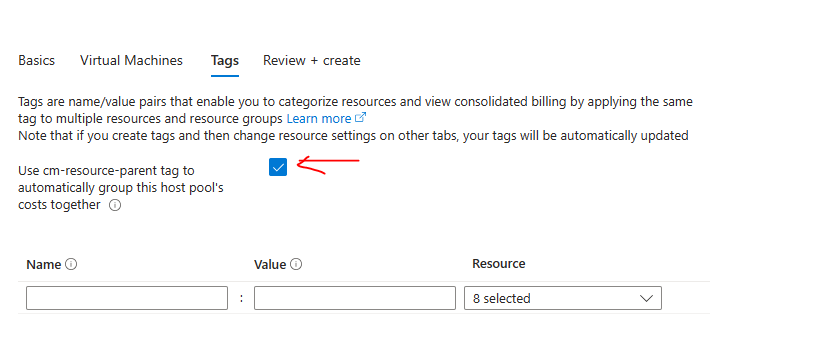
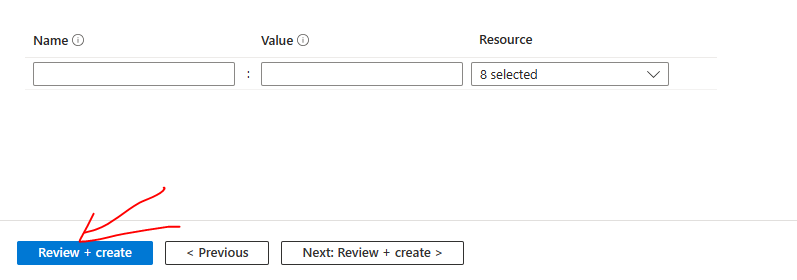
choose tags and click Review + Create and create to provision new VM on session host.
!!! Note: For other vm provisioning please follow same steps as above.