Architecture on Entra Auth for mysql server:
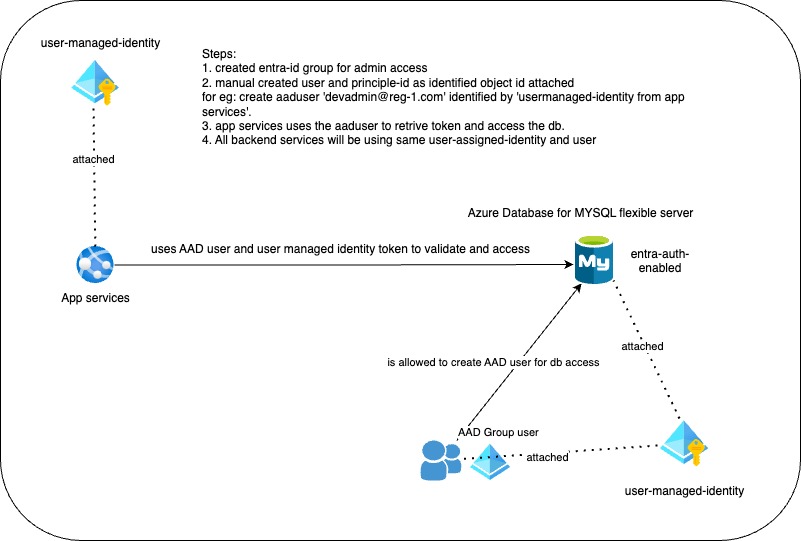
Managing Azure AD Users and Permissions for Database Access
To achieve our goal of managing Azure AD users and permissions for database access through backend APIs, it's important to follow best practices for both security and maintainability. Below, I will provide an optimized approach to create Azure AD users for database access, configure permissions, and facilitate secure authentication from applications using managed identities.
Step 1: Create Managed Identities for API Backends
We can define a Terraform resource for each managed identity for all different API backends. This will help in isolating access control in a secure and scalable manner.
resource "azurerm_user_assigned_identity" "api_identity" {
  name                = "microservices-identity"
  resource_group_name = azurerm_resource_group.example.name
  location            = azurerm_resource_group.example.location
}
Note
Manages a group within Azure Active Directory.
API Permissions
The following API permissions are required in order to use this resource.
When authenticated with a service principal, this resource requires one of the following application roles: Group.ReadWrite.All or Directory.ReadWrite.All.
Alternatively, if the authenticated service principal is also an owner of the group being managed, this resource can use the application role: Group.Create.
If using the assignable_to_role property, this resource additionally requires the RoleManagement.ReadWrite.Directory application role.
If specifying owners for a group, which are user principals, this resource additionally requires one of the following application roles: User.Read.All, User.ReadWrite.All, Directory.Read.All or Directory.ReadWrite.All
When authenticated with a user principal, this resource requires one of the following directory roles: Groups Administrator, User Administrator or Global Administrator
Step 2: Create Azure AD Users for SQL Server
Azure does not support creating Azure AD users via Terraform directly for SQL authentication. Instead, use Azure AD to authenticate a database user. Typically, you would set up a contained database user based on an Azure AD identity.
Note: Before attempting to create a user on the server, ensure that the Azure AD identity is appropriately configured with necessary permissions.
Step 3: Grant Database Access
Since Terraform does not currently support the direct management of SQL permissions for Azure databases, you will need to manage database permissions either directly through Azure's portal, CLI, or using custom providers or external tools or using MSQL workbench.
to get access token to login admin access to db server
use entra group admin user name &&

az account get-access-token --resource-type oss-rdbms --output tsv --query accessToken
Here's an example SQL command to configure this access, which must be run through an appropriate SQL management tool:
-- This SQL command is for illustrative purposes

SET aad_auth_validate_oids_in_tenant = OFF;
CREATE AADUSER [your-azure-ad-user-name] IDENTIFIED BY ‘azurerm_user_assigned_identity’
GRANT ALL PRIVILEGES ON database_name.* TO [your-azure-ad-user-name];
or
GRANT SELECT,INSERT,UPDATE,DELETE,CREATE,DROP,ALTER ON database_name.* TO '[your-azure-ad-user-name]'@'%' WITH GRANT OPTION;
FLUSH PRIVILEGES;
Step 4: Connect to the Database from Application
Applications should use the managed identity to authenticate against Azure AD and obtain a token for database access. Here is a conceptual approach:
using Azure.Identity;
using System.Data.SqlClient;

var credential = new DefaultAzureCredential();
var accessToken = credential.GetToken(new TokenRequestContext(new[] { "https://database.windows.net/.default" }));

var connectionString = $"Server=your-database-server.database.windows.net; Authentication=Active Directory Default; Database=your-db-name;";
using var connection = new SqlConnection(connectionString);

connection.AccessToken = accessToken.Token;
connection.Open();

// Proceed with database operations
Reference Link
For more details on setting up Azure AD authentication for database access, see the following Microsoft Tech Community blog post: Azure AD Authentication for MySQL Flexible Server from End-to-End
Important: Make sure to validate the Azure service you are using (e.g., Azure SQL Database, Azure MySQL) because the authentication methods and SQL commands might vary slightly between different services.